I'm sorry for the problems during the last few days. This new layout should have no bandwith limits.
I'm in a new town having just started studying economics and business administration. I hope I'll get a broadband connection soon in order to be able to update this blog more often.
In addition, I need some new (or rather some old) hardware as my iBook thinks we are living in 1904. It is an old computer, but not that old.
My school has, unfortunately, a strict MS only policy. It means I have to learn to use MS Office and use Outlook for my email.
Zenwalk 5.2 Gnome released
GNOME is not considered especially lightweight desktop environment. In my experience, however, any computer with at least 1GHz Pentium and 256 MB RAM can be used to run GNOME desktop. You might consider it unusable, but I have noticed it is better to install GNOME to be used by my non-geek wife than to force her use some lightweight window manager that does not pop up icons for memory sticks on the desktop...
If you are looking for a lightweight Linux distribution with GNOME, you should seriously consider Zenwalk 5.2 with GNOME. Zenwalk has for years been a nice lightweight distribution that is based on Slackware. Thus it has been a delight to hack and tweak.
Read the release notes before deciding. The Zenwalk Gnome 5.2 iso weighs 597.7MB and can be downloaded from the following locations:
http://distro.ibiblio.org/pub/linux/dis ... me-5.2.iso
http://pnboy.pinguix.com/gapan/zengnome ... me-5.2.iso
http://zen-repo.meticul.eu/i486/zenwalk ... me-5.2.iso
http://ftp.nux.ipb.pt/pub/dists/zenwalk ... me-5.2.iso
http://zenwalk.linuxish.net/i486/zenwal ... me-5.2.iso
http://chronos.iut-bm.univ-fcomte.fr/di ... me-5.2.iso
If you are looking for a lightweight Linux distribution with GNOME, you should seriously consider Zenwalk 5.2 with GNOME. Zenwalk has for years been a nice lightweight distribution that is based on Slackware. Thus it has been a delight to hack and tweak.
Read the release notes before deciding. The Zenwalk Gnome 5.2 iso weighs 597.7MB and can be downloaded from the following locations:
http://distro.ibiblio.org/pub/linux/dis ... me-5.2.iso
http://pnboy.pinguix.com/gapan/zengnome ... me-5.2.iso
http://zen-repo.meticul.eu/i486/zenwalk ... me-5.2.iso
http://ftp.nux.ipb.pt/pub/dists/zenwalk ... me-5.2.iso
http://zenwalk.linuxish.net/i486/zenwal ... me-5.2.iso
http://chronos.iut-bm.univ-fcomte.fr/di ... me-5.2.iso

Mepis Antix 7.5 Released
AntiX is a lightweight remaster of Mepis tailored for old computers. AntiX should work on computers with at least 64 MB RAM (128 MB is the recommended amount) and Pentium II or equivalent AMD processors. You can download and burn the iso image (393 MB) needed for installation of this lightweight distribution.
Conky is a lightweight system monitor for Linux
 Many Linux users want to have an application monitoring the system usage on their desktop. Conky is a solution that is suitable for lightweight Linux installations on old computers.
Latest version of Conky was released last week, but most probably the older version available from the package repositories of your favourite distribution will work just fine.
In the official home page for Conky, you find nice screenshots of the application with respective configuration files. They are certainly worth having a look if you want to have a lightweight system monitor on your desktop.
A Short IceWM Tutorial
If you want to use a lightweight Linux system on your old computer, you have to use a lightweight window manager. IceWM is one of my favourite lightweight window managers. It does not reserve a lot of system resources and it can be used even with very old computers. It depends only on the X window system and libXpm. It should run even on an 386 or any other imaginable box that can run X. It is included in the repositories of every major distribution, so you should encounter no problems in installing it through the default package manager, either apt-get, yum, zypper or any other imaginable tool.
 In addition to Linux, it can be used on several other flavours of Unix including commercial systems like Tru64 and AIX and open source operating systems like FreeBSD and NetBSD. It has even been reported to compile and run under Windows!
IceWM uses themes to change the look and feeling of the window manager. Themes consist of things like fonts, colours, borders and button pixmaps put together under a name to form a theme. The theme can be changed from IceWM's menu under the item Settings. The theme will be stored in the file ~/.icewm/theme. Changing the theme from the Themes menu overwrites the content of the file with the new theme automatically
Find a theme to install
Your IceWM probably came with some themes. Usually even more of themes can be installed through the package management as a separate package.
I prefer to choose myself the themes to be installed. There are two especially good web sites to go hunting for a ready theme to spice up your desktop:
* Freshmeat
* Box-look
It can even be configured to look like Windows XP if you try to build a desktop for those who are afraid of Linux.
Unzip the package
The themes are compressed packages and they must be uncompressed before use.
First check the package is OK:
tar -tzvf win31theme-default.tar.gz
This allows you to check the contents of the package before really unzipping it. If everything seems to be OK unzip the file with:
tar -xvf win31theme-default.tar.gz
This unzips the package in a directory called win31.
Put it somewhere where IceWM finds it
If you want to use the theme only for yourself (or if there are no other users), you should move the theme to the directory ~/.icewm/themes/themename. After this, you should find the just installed theme under the menu item Settings -> Themes
Themes usable by everyone are stored (at least in my system) in /usr/share/icewm/themes/
Tweak the menu
I don't like the default menu offered by the distribution I use. Probably you won't be perfectly happy with your menu either. This is where the going gets tough, as we will actually edit a text file to configure IceWM's menu.
Fortunately, it uses syntax that is simple to understand. First copy the default menu from /etc/icewm/menu to ~/.icewm/menu. If you absolutely do not want to configure any text files, you can try the programs IceMC or MenuMaker to edit the menu. I find it easier to configure the menu with Emacs (or some other editor).
The items in menu file start with a keyword, either prog or separator. Programs are defined using the syntax:
prog Program Icon app -and -options
We can, for example, add Firefox by adding the following line to menu:
prog Firefox firefox firefox
The first Firefox is the entry added to the menu, the second firefox is the name of the icon and the third firefox is the name of the binary.
If you want to insert a sub menu, it can be done by adding:
menu SubMenu folder _icon {
prog ...
prog ...
}
It is a good idea to think twice about programs one adds to the start menu and toolbar as the choice of lightweight software is as important for the user experience as the chosen window manager. I usually try to use lightweight alternatives to better known applications, for example, Abiword instead of OpenOffice.Org and PCManFM instead of Nautlilus, Konqueror or Dolphin. But you are of course free to do whatever you want!
Toolbar
You can add start buttons to toolbar using the same syntax as for adding applications to start menu. Use ~/.icewm/toolbar for your personal toolbar.
Preferences
The preferences are read from file preferences. Copy the default preferences from /etc/icewm/preferences to ~/.icewem/preferences. Use this copy of preferences file for storing your personal preferences.
The preference file is well documented. Just browse through the options presented in the file.
Icons on the Desktop
I am not sure whether having icons on the desktop is a good habit or if they just make the desktop more cumbersome to use. Most people, however, seem to want icons on their desktop where they are hidden behind windows and difficult to find.
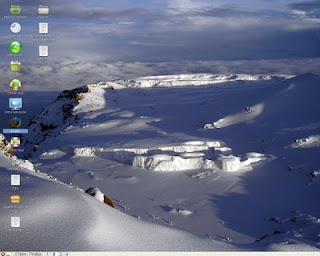
IceWM does not support icons out of the box but there are several applications that can provide the desired result. One of them is idesk. I decided to use PCManFM for icons and wallpaper (Edit, Preferences, Manage the desktop and show file icons).
Startup script
It is not especially practical to set the wallpaper by hand using the command line every time one starts IceWM. If you want to execute certain applications every time you start IceWM, you can write a startup script (~/.icewm/startup). Here is a simple sample script:
---------------- ---------------- ----------------
#!/bin/bash
 #
#
xterm -geometry 100x20+10+600 & # start a terminal
pcmanfm & # start the file manager
---------------- ---------------- ----------------
Remember to make your startup script executable with:
chmod a+x startup
As the result of these steps, you have a simple and strong lightweight desktop that is tailored to your needs. Later you can add even more lightweight functionality to your customised desktop and make it truly unique. If you already now have some ideas just drop a line in the comment box!
 In addition to Linux, it can be used on several other flavours of Unix including commercial systems like Tru64 and AIX and open source operating systems like FreeBSD and NetBSD. It has even been reported to compile and run under Windows!
IceWM uses themes to change the look and feeling of the window manager. Themes consist of things like fonts, colours, borders and button pixmaps put together under a name to form a theme. The theme can be changed from IceWM's menu under the item Settings. The theme will be stored in the file ~/.icewm/theme. Changing the theme from the Themes menu overwrites the content of the file with the new theme automatically
Find a theme to install
Your IceWM probably came with some themes. Usually even more of themes can be installed through the package management as a separate package.
I prefer to choose myself the themes to be installed. There are two especially good web sites to go hunting for a ready theme to spice up your desktop:
* Freshmeat
* Box-look
It can even be configured to look like Windows XP if you try to build a desktop for those who are afraid of Linux.
Unzip the package
The themes are compressed packages and they must be uncompressed before use.
First check the package is OK:
tar -tzvf win31theme-default.tar.gz
This allows you to check the contents of the package before really unzipping it. If everything seems to be OK unzip the file with:
tar -xvf win31theme-default.tar.gz
This unzips the package in a directory called win31.
Put it somewhere where IceWM finds it
If you want to use the theme only for yourself (or if there are no other users), you should move the theme to the directory ~/.icewm/themes/themename. After this, you should find the just installed theme under the menu item Settings -> Themes
Themes usable by everyone are stored (at least in my system) in /usr/share/icewm/themes/
Tweak the menu
I don't like the default menu offered by the distribution I use. Probably you won't be perfectly happy with your menu either. This is where the going gets tough, as we will actually edit a text file to configure IceWM's menu.
Fortunately, it uses syntax that is simple to understand. First copy the default menu from /etc/icewm/menu to ~/.icewm/menu. If you absolutely do not want to configure any text files, you can try the programs IceMC or MenuMaker to edit the menu. I find it easier to configure the menu with Emacs (or some other editor).
The items in menu file start with a keyword, either prog or separator. Programs are defined using the syntax:
prog Program Icon app -and -options
We can, for example, add Firefox by adding the following line to menu:
prog Firefox firefox firefox
The first Firefox is the entry added to the menu, the second firefox is the name of the icon and the third firefox is the name of the binary.
If you want to insert a sub menu, it can be done by adding:
menu SubMenu folder _icon {
prog ...
prog ...
}
It is a good idea to think twice about programs one adds to the start menu and toolbar as the choice of lightweight software is as important for the user experience as the chosen window manager. I usually try to use lightweight alternatives to better known applications, for example, Abiword instead of OpenOffice.Org and PCManFM instead of Nautlilus, Konqueror or Dolphin. But you are of course free to do whatever you want!
Toolbar
You can add start buttons to toolbar using the same syntax as for adding applications to start menu. Use ~/.icewm/toolbar for your personal toolbar.
Preferences
The preferences are read from file preferences. Copy the default preferences from /etc/icewm/preferences to ~/.icewem/preferences. Use this copy of preferences file for storing your personal preferences.
The preference file is well documented. Just browse through the options presented in the file.
Icons on the Desktop
I am not sure whether having icons on the desktop is a good habit or if they just make the desktop more cumbersome to use. Most people, however, seem to want icons on their desktop where they are hidden behind windows and difficult to find.
IceWM does not support icons out of the box but there are several applications that can provide the desired result. One of them is idesk. I decided to use PCManFM for icons and wallpaper (Edit, Preferences, Manage the desktop and show file icons).
Startup script
It is not especially practical to set the wallpaper by hand using the command line every time one starts IceWM. If you want to execute certain applications every time you start IceWM, you can write a startup script (~/.icewm/startup). Here is a simple sample script:
---------------- ---------------- ----------------
#!/bin/bash
 #
#xterm -geometry 100x20+10+600 & # start a terminal
pcmanfm & # start the file manager
---------------- ---------------- ----------------
Remember to make your startup script executable with:
chmod a+x startup
As the result of these steps, you have a simple and strong lightweight desktop that is tailored to your needs. Later you can add even more lightweight functionality to your customised desktop and make it truly unique. If you already now have some ideas just drop a line in the comment box!
Back to the Eighties: twm.
 Yesterday I gave eight reasons for trying alternative window managers. I even suggested installing twm to see what Linux looked like more than a decade ago. I suppose that most of you did not bother to install this relique of last millennium just for fun. So here the obligatory screenshot of the window manager originally released in 1988!
Tab Window Manger a.k.a. Tom's Window Manager provided windows with title bars, something resembling icons (see the top left corner) and configurable key bindings. But no wallpapers or virtual desktops or other modern sugaring like widgets for closing an application.
Configurability and theming is kept to the minimum. One can change the fonts and colors but not much else. If you have a computer with Pentium processor I would suggest you to use any other window manager.
Eight Reasons for Trying Alternative Window Managers
Ubuntuforums.org is one of the Linux forums I like to follow even if I don't myself use Ubuntu at the moment. It has got pretty much traffic which makes it interesting to read and to participate in the discussions.
Some time ago, a forum member asked about the point of using lightweight window managers. He was apparently happy with GNOME and did not see any point in experimenting with lightweight alternatives:
Some time ago, a forum member asked about the point of using lightweight window managers. He was apparently happy with GNOME and did not see any point in experimenting with lightweight alternatives:
In my opinion, the lighweight window managers are worth trying for several alternatives. In fact, I was able to list at least ten reasons for changing GNOME for something else. These were the reasons I gave as my answer to the question:
I understand some are made for lower end machines. My machine runs gnome fine so does it even bother me to experiment around with them?
- It is fun.
- One learns something.
- One will soon be bored with GNOME.
- All window managers look different.
- KDE is better than GNOME.
- Window managers are lighter than GNOME or KDE.
- One can install twm to see what Linux looked like in the middle of 90's.
- One is free to do anything with one's system.
Subscribe to:
Posts (Atom)